
🎯 The core idea
Since Update 1.0, Satisfactory has an official-adjacent modding scene built around a single tool: the Satisfactory Mod Manager (SMM), which downloads mods, their dependencies, and the mod loader for you. This guide follows a real walkthrough of installing SMM, setting up a mod profile, and picking a first batch of mods — plus the safety caveats worth knowing before you touch a save file you care about. Only ever download SMM from ficsit.app (or its shortcut, smm.ficsit.app) — that's the one official source, and this guide links nowhere else.
- free costs nothing
- cheap small cost
- setup needs preparation
- grind pays off slowly
- skip the thing to stop doing
Installing the Satisfactory Mod Manager

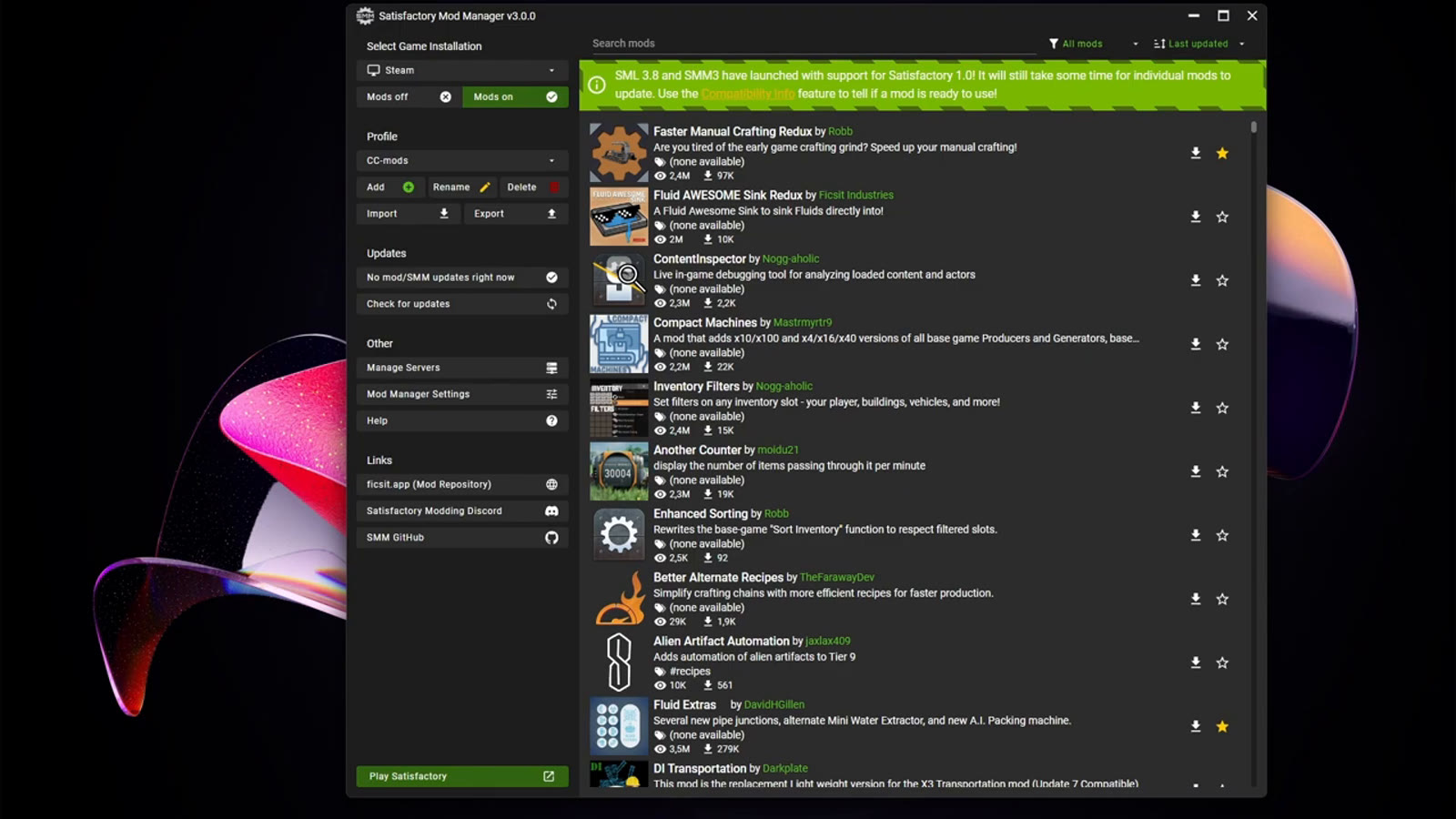
Getting started is a single download: the "Open Mod Manager" button (which reads "Download Mod Manager" on a fresh install) pulls an installer from ficsit.app, and installing it works like any other program. It's worth knowing ahead of time that Windows may flag the installer as coming from an "unknown publisher" — that's expected for a small open-source tool without a paid code-signing certificate, not a sign anything is wrong, and the official documentation covers exactly this warning if it trips you up. If installation goes sideways, the modding Discord (linked from ficsit.app) is the place to ask, rather than a random forum thread.
Profiles: keeping mod sets separate

A profile is a saved collection of mods, and setting one up is the first real step before picking anything: switching profiles immediately unloads the previous set and loads the new one, which makes it easy to keep a heavily-modded creative profile separate from a lighter one you'd actually run a serious playthrough on. You don't have to commit to modding at all, either — toggling "Mods off" in the top-left corner disables every mod at once without deleting anything, so going back to vanilla for a session is a single click. Just make sure the Manager is pointed at the correct game installation (Steam or Epic) before launching, since mods installed against the wrong install won't show up in-game.
Finding mods you can actually use

The filter dropdown in the top-right corner is the most important control on this screen: switching it from "All Mods" to "Compatible" hides everything that isn't confirmed to work with your exact installed game version, which is the safest default to leave it on while browsing. From there, sorting by popularity is a reasonable way to find a starting point if you don't already have specific mods in mind — some entries you'll see, like compatibility patches, install and enable themselves automatically as dependencies rather than needing to be picked directly.
Launching with mods and seeing them in-game

Once a handful of mods are selected, "Apply changes" downloads and installs everything in one batch rather than mid-selection, and the Manager's own "Play Satisfactory" button is the reliable way to launch a modded session — launching the normal way through Steam or Epic still loads any installed mods since the files are already in place, but this guide's source video specifically recommends launching from the Manager for a more stable session. In-game, a UI-focused mod can add its own menu (opened here with a dedicated keybind) for controls like time-of-day and fog toggles that don't exist in vanilla Satisfactory at all.
Recommended mod: Structural Solutions for builders

For anyone who wants more building flexibility than the vanilla foundation and wall set offers, Structural Solutions adds well over a hundred new buildable objects covering shapes vanilla Satisfactory doesn't have a clean piece for. It's a purely additive content mod — it doesn't touch core factory logic — which generally makes mods like it safer bets for long-term save compatibility than mods that hook deeply into game systems.
Recommended mods: more inventory space

Several separate mods exist purely to add inventory slots for free from the start of a save, and stacking a few of them is a popular middle ground between vanilla's fairly tight inventory and switching on a no-build-cost setting that removes the resource loop entirely. The practical reasoning is about pace, not power: once a factory is producing hundreds of items a minute, a vanilla-sized inventory or Dimensional Depot upload buffer empties in seconds, and a bit more carrying capacity smooths that out without changing how production itself works. Inventory expansion sits alongside two other well-known quality-of-life (QOL) picks: Faster Manual Crafting Redux, which this guide's source video also installs and which blitzes through handcrafting so you don't have to micromanage standing at a bench waiting on a queue of parts, and Infinite Zoop — not shown in this particular video, but worth knowing about — which removes the vanilla range limit on the Zoop building tool so you can extend a foundation or wall run in one motion instead of repeatedly reapplying it.
Recommended mod: a fun, low-risk change of pace

Not every worthwhile mod needs to change factory mechanics — one popular pick lets a Pioneer transform directly into a drivable vehicle with a single keybind, which is a genuinely fun, clearly-labeled novelty rather than anything that alters the underlying building or production systems. It's a good example of a low-risk first mod for someone new to modding: it's easy to understand exactly what it does and easy to predict what removing it later would undo.
Recommended mod: Fluid Extras for pipe variety

Fluid Extras adds visual and logistical variety to pipe networks — different junctions, extractors and packagers — without changing the underlying fluid mechanics, aimed specifically at players who already feel confident with vanilla pipe dynamics and want more options for how a fluid setup looks and routes. Recommendations like this are subjective by nature; what belongs on any given "best mods" list changes as the mod scene updates, so treat a curated list as a starting point for browsing rather than a fixed ranking.
Mod safety, compatibility, and save files
Using mods downloaded exclusively through the official Satisfactory Mod Manager is broadly considered safe, but it isn't risk-free, and the caveats are worth taking seriously before installing anything on a save you'd be upset to lose. A small number of documented cases exist where a broken mod damaged a save file badly enough to cause problems even after the mod was removed — rare, but real, which is exactly why a mod-compatible smart mod manager warns you before letting an incompatible mod load in the first place. Compatibility is also not permanent: major Satisfactory updates, especially ones that change the underlying Unreal Engine version, routinely break mods until the volunteer modding community catches up, and an incompatible mod can make the game unplayable until it's removed via the Mod Manager. Multiplayer adds another layer — whether a given mod works correctly in a hosted session depends on that specific mod, and a well-documented mod page will say so explicitly rather than leaving it to guesswork. The safest habit, and the one this guide recommends without exception, is backing up a save before installing anything new, and backing up again before any major game update — that backup is what turns "my modded save might be gone" into "I rolled back and I'm fine." If you decide to uninstall a mod, do it from inside the Mod Manager rather than by hand: the trash-can button removes its files cleanly, whereas manually deleting a modded building or belt from a save without going through the Manager first is one of the more common ways a save ends up in a broken state.
How this guide was fact-checked
The Satisfactory Mod Manager's core behavior — profiles, the Compatible filter, the "Mods off" toggle, dependency auto-installation, and launching from the Manager versus launching normally — is confirmed against the official Satisfactory Modding Documentation, which also confirms SMM and its companion mod repository are only officially distributed from ficsit.app. The save-corruption caveat, the description of it as rare but documented, and the recommendation to back up before installing or updating are confirmed via the official documentation's own safety guidance. The rule that major updates (particularly Unreal Engine version changes) can break mod compatibility until the community catches up, and that an incompatible mod may need removing via the Mod Manager to keep the game playable, is confirmed on the official Satisfactory Wiki's own Modding page. The specific mod recommendations — Structural Solutions, the inventory-expanding mods, the vehicle-transformation mod, and Fluid Extras — and their descriptions come directly from this guide's source video's own on-screen browsing and explanations.
What this guide doesn't answer
This guide doesn't walk through installing mods on a dedicated server, which uses a separate workflow covered in its own section of the official modding documentation and is out of scope for a single-player-focused introduction like this one. It also doesn't rank or compare every popular mod against every other one — "best mods" is inherently a moving, subjective target as the mod scene updates after each game patch, and this guide sticks to the handful demonstrated in its source video rather than claiming to be exhaustive. Finally, it doesn't cover mod development or how to build a mod from scratch — that's a substantial separate skill set with its own documentation, aimed at a completely different audience than players looking to install and use existing mods.