
🎯 The core idea
The best League of Legends settings are the ones that remove a click between you and the action: quick cast on your abilities, auto attack switched off, attack move click on a key you can reach, Target Champions Only on a spare button, and an interface that shows mana costs, timestamps and champion names. None of it costs anything, and ten minutes in the Practice Tool makes it stick.
- free costs nothing
- cheap small cost
- setup needs preparation
- grind pays off slowly
- skip the thing to stop doing
This LoL hotkeys guide follows a three-minute settings rundown by the channel 3 Minute League of Legends, recorded in August 2025 on patch 25.16. Client settings rarely change, and every option the video shows still exists, but the menu has picked up a few new entries since then. We checked each setting against the official League of Legends Wiki ("Settings" and "Controls and Hotkeys" pages) and the patch notes from 25.17 to 26.21. Here is what is different in the Season 2026 client compared with the video:
| Patch | What changed in the settings | Where you find it |
|---|---|---|
| 25.17 | Minimap jungle timers, with an "Enable All Camp Timers" option for every camp | Interface → Minimap |
| 25.24 | WASD movement as a second control scheme, with its own Dynamic Camera | Hotkeys (control scheme) and Camera |
| 26.1 | New Role Quest Slot in the quickbind row, default key V | Hotkeys → Primary Hotkeys |
| 26.2 | The role quest key can be double bound and set from the client before a game | Hotkeys, client settings |
| 26.3 | Supports start the game with Control Wards in the role quest slot | Role Quest Slot key |
| 26.8 | Champion-specific keybinds, including per-champion quick cast | Hotkeys, in game only |
| 26.9 | WASD allowed in Ranked and Clash | Control scheme |
If your Options window has a row or two that the video doesn't show, that is why. Everything below gives the setting, where it lives in the current menu, and why it helps.
Quick cast: the first setting to change

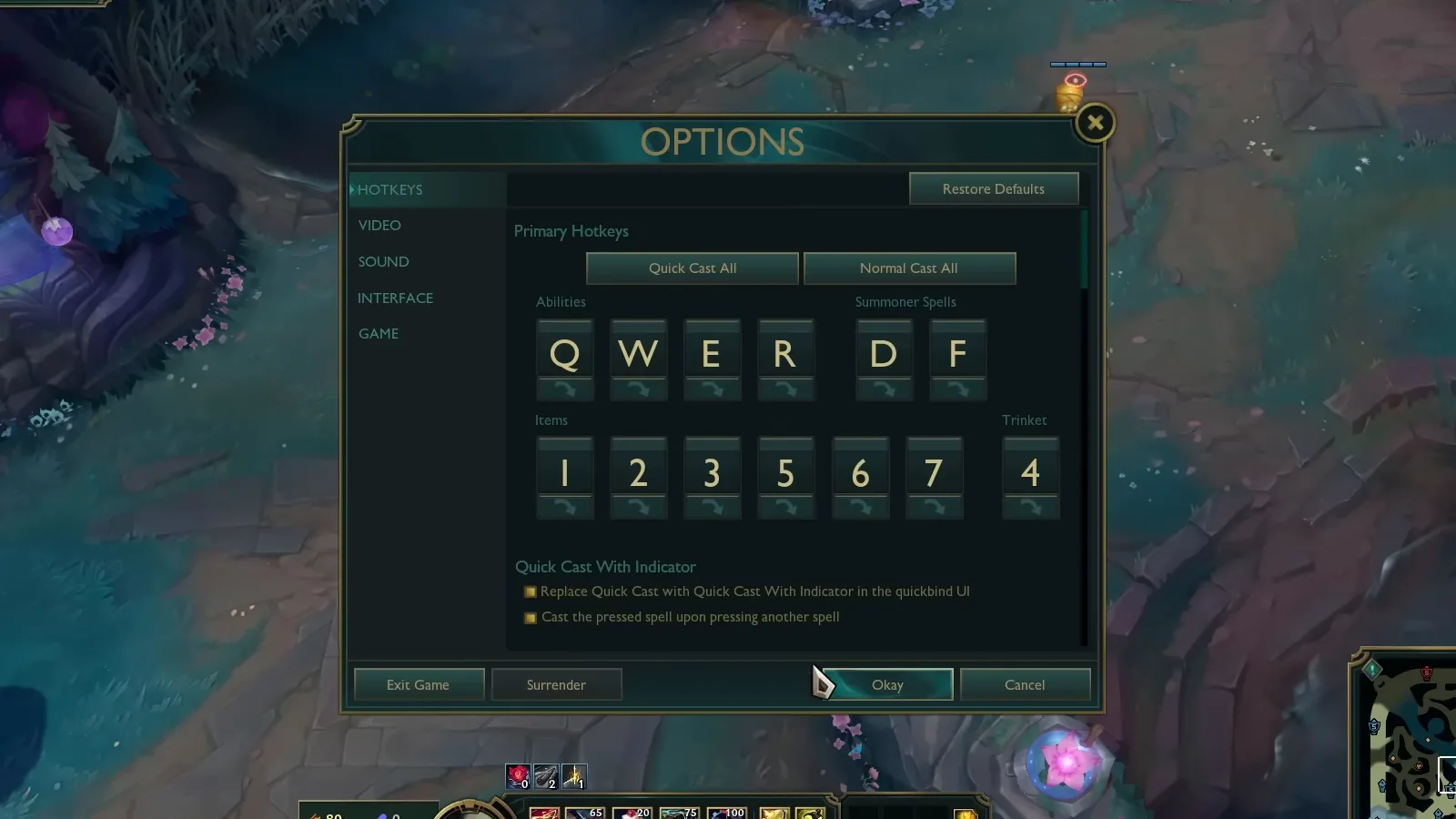
free Open Options → Hotkeys (press Esc in game, or use the cog in the client). The top block, called Primary Hotkeys or the quickbind UI, shows your abilities (Q, W, E, R), summoner spells (D, F), item slots and trinket. The small arrow button under each key is the casting mode: greyed out means Normal Cast, highlighted means Quick Cast. The Quick Cast All button flips every key at once.
The three casting modes, as the wiki defines them:
| Mode | What happens when you press the key | Best for |
|---|---|---|
| Normal Cast | Shows the range indicator, then waits for a left click to confirm | Learning a new champion, careful ward placement |
| Quick Cast | Casts instantly at your cursor, no indicator | Almost everything once you are used to it |
| Quick Cast with Indicator | Shows the indicator while you hold the key, casts on release | Long skillshots, players moving off normal cast |
The video's advice is blunt: normal cast is slow, so switch to quick cast and live with a few games of misfires while you adjust. We agree. Quick cast used to be called "smart cast", which is why older guides and forum posts search as smart cast LoL; it is the same setting.
Two checkboxes sit under the quickbind row. "Replace Quick Cast with Quick Cast With Indicator in the quickbind UI" turns every quick cast key into hold-and-release. "Cast the pressed spell upon pressing another spell" buffers a held spell so it fires the moment you press the next one, which the video mentions as a way to speed up combos.
Item hotkeys in League of Legends work the same way. By default items use 1, 2, 3, 5, 6, 7 and the trinket uses 4, each with its own cast-mode arrow. The quickbind row in the video has no Role Quest Slot, because that slot arrived with patch 26.1: it defaults to V, holds your role reward (for example a support's Control Wards since patch 26.3), and since patch 26.2 you can bind it twice, so V and your old item key both work. If you main supports, check this key before your first game; our warding guide explains why ward and trinket keys are worth a second look.
Shift and Alt: keep a slower cast mode and self cast hotkeys on spare keys

setup Scroll down in the Hotkeys tab to Hotkeys → Abilities and Summoner Spells. Here you can add extra keys for each cast mode that ignore your quickbind setting. The video binds Quick Cast With Indicator to Shift + Q/W/E/R, so the main keys fire instantly and Shift shows the indicator when you want to see a range first. The frame above shows exactly that row: Set 2 holds Shift Q, Shift W, Shift E and Shift R, with Shift D and Shift F on the summoner spells.
The same list holds the self cast hotkeys. The client default is Alt + key (Alt + Q and so on). A self cast spell targets your own champion when nothing valid is under your cursor, which matters on heals, shields and buffs such as Lulu's or Janna's. The wiki also lists "Quick + Self Cast" and "Quick Cast With Indicator + Self Cast" rows, unbound by default. In the video the creator's own self cast list puts Spell 3 on C instead of Alt + E, so don't copy a frame like this one blindly; it is one player's layout.
The same trick works for wards. The warding guide recommends keeping quick cast on your item keys and adding normal-cast keys for the trinket, so you can place a ward exactly at the edge of a brush when you have half a second to spare.
A 2026 catch: if you play with the new WASD control scheme, Shift is taken. The wiki notes that W-cast moves to Left Shift in WASD mode, and Shift can't be used as a modifier for any other bind there. Put your indicator keys on Alt or a mouse button instead.
Turn off auto attack so your champion stops hitting minions on its own

skip By default your champion attacks anything in range while standing still. That pushes your wave when you want to freeze it, pulls minion aggro, and starts fights you didn't choose. The video calls leaving it on "trolling yourself", and that is fair.
Turn it off in Options → Game → Gameplay → Auto attack. With the box unchecked, your champion only attacks when you tell it to, either with a right click or with attack move (next section). If wave control is new to you, this one checkbox does more for your lane than any rune page.
Player Attack Move Click: attack move on a single key

setup Attack move tells your champion to walk toward a point and hit the nearest valid target on the way. The menu has two commands under Hotkeys → Player Movement, and they are easy to mix up:
| Command | Default key | What it does |
|---|---|---|
| Player Attack Move | A (or X) | Shows your attack range, then waits for a left click on a spot or target |
| Player Attack Move Click | Shift + right click | Fires immediately at your cursor position, no range circle |
The video binds Player Attack Move Click to A, which is what most players mean when they talk about attack move click settings. Pressing A then works like a right click that never misses a target: tap it near enemies and your champion attacks the closest one. On a marksman, alternating A and right click is the basic way to kite. The frame shows this exact layout, with the old Player Attack Move pushed to X in Set 2.
Attack move on cursor: target what you point at, not what is nearest to you

free By default, attack move picks the target closest to your champion. Tick Options → Game → Gameplay → Attack move on cursor and it first looks for the target closest to your cursor within or near attack range, and only falls back to the champion-based search if nothing is there. The wiki confirms that is exactly how the option works.
The video shows this on Caitlyn: with the option on, she switches between practice dummies just by moving the cursor near the one she wants, without ever clicking directly on it. For ranged champions this is the setting that makes attack move feel precise instead of random. Melee players can leave it either way; most find it helps.
Bind auto attack move to left click

setup At the very bottom of the Hotkeys tab, under Advanced Keybinding Options, there is a checkbox called Bind auto attack move to left click. With it on, every left click on the game world becomes an attack move command.
The video suggests it as a training wheel: it forces the attack move habit because you can't avoid it. The drawback the video points out is real, though. A left click anywhere, including on your minimap, is also an attack move input, which can catch you out. Our take: try it for a few Practice Tool sessions, then switch back to a dedicated key once attack moving is automatic.
Target Champions Only for fights inside minion waves

free Target Champions Only stops your clicks and attack moves from landing on minions, monsters or structures. It is bound to the backtick key (`) by default, which few people can reach mid-fight, so the video moves it to a side mouse button. While it is active, your cursor gets a red dot in the middle.
Use it when you trade with an enemy standing inside their minion wave or under their tower, where one misclick sends your auto attack into a caster minion. By default you hold the key down; if you would rather tap it on and off, enable Options → Game → Treat 'Target Champions Only' as a toggle. This is one of the target champions only LoL tricks that pays off immediately in lane.
Camera lock or unlock, and the camera keys to know

grind The video doesn't cover the camera, so this section is from the wiki's Settings and Controls pages. The LoL camera settings are split in two: the keys sit in Options → Hotkeys → Camera Control, and the behaviour options (Default Camera Mode, Camera Lock Mode, camera speed, smooth camera) are in the Camera section. The video's Options window only has Hotkeys, Video, Sound, Interface and Game tabs, so if you see a Camera section it is newer than the video; the wiki lists it in the current client.
| Key or setting | Default | What it does |
|---|---|---|
| Toggle Camera Lock | Y | Switches between a locked camera and a free one |
| Center Camera On Champion | Space | Tap or hold to snap back to your champion |
| Select Self / Select Ally | F1 / F2 to F5 | Jumps the camera to you or a teammate |
| Camera Lock Mode | Per-Side Offset | Per-Side Offset, Fixed Offset or Semi-Locked |
| Default Camera Mode | Free or Locked | Which mode a game starts in |
So, camera lock or unlock? A locked camera is easier at first, but it always shows more of the map behind you than ahead on one side, and you can't look at a fight without walking toward it. Most experienced players use an unlocked camera and hold Space to recenter. A good middle step is Semi-Locked, which lets you pan while locked as long as your champion stays on screen. If you use WASD, patch 25.24 added a Dynamic Camera that follows your mouse and a middle-mouse "scout ahead" button. Practice unlocked camera in normal games, not ranked; it costs you a few deaths before it starts saving them.
Champion sound notifications and experience combat text

free Under Options → Interface → Accessibility, tick Display champion sound notification. When an enemy uses a global or map-wide ultimate, such as Briar's Certain Death, Karthus' Requiem, Twisted Fate's Destiny or Nocturne's Paranoia, a notification appears next to the kill feed. You still hear the sound cue, but now you also see who did it, which helps when the game is loud. The tooltip in the frame describes it the same way.
The same screen holds the Combat Text checkboxes. The video recommends turning on Experience: you see a number pop up each time you gain experience, which tells you whether you stood close enough to a dying minion to get it. Missing experience by standing too far back is a quiet way to fall a level behind.
Show spell costs and cooldowns in seconds

free In Options → Interface → Ability and Attack Display, tick Show Spell costs. Each ability on your HUD then shows its mana or energy cost, so you can tell at a glance whether you have enough for a full combo. On mana-hungry champions this saves you from starting an all-in you can't finish.
Just below is Ability Cooldown Display. The frame shows it set to Seconds; Minutes + Seconds is handy if you track long cooldowns such as ultimates. The same block also has Show Attack Range, which shows your range while attack moving and is worth keeping on while you learn spacing.
Chat timestamps and champion names above health bars

free In Options → Interface → Chat, tick Show timestamps. The video calls this a no-brainer, and it is: when a teammate pings that the enemy used Flash, the message now carries the game time, so anyone can work out when it comes back. Flash has a 300-second cooldown before haste, so a Flash at 6:20 is up around 11:20 unless the player has summoner spell haste.
Next to it, Change Chat Visibility picks which channels you see: everyone, your team, or your premade party only.
Still in the Interface tab, under Health and Resource Bars, set Show Names Above Healthbar to Champion Name. The other options are None and Summoner Name. As the video puts it, a player's chosen name tells you nothing, but seeing "Kai'Sa" or "Malphite" over a health bar helps, especially in your first months while you are still learning which champion is which. If you are still picking a main, our best League of Legends champions for beginners guide covers the easiest champion for every role.
HUD scale, minimap scale and camp timers

setup The top of the Interface tab is Interface Size: HUD Scale, Cursor Scale, Shop Scale, Chat Scale, Minimap Scale and a few pop-up scales. The video's advice is to keep the HUD small and make the minimap bigger. A smaller HUD gives you more of the battlefield, and a larger minimap is easier to glance at, which is the whole point if you tend to forget to look at it.
Two minimap options are new or worth knowing about. Show Minimap on left moves it to the other corner, which some players prefer. And since patch 25.17, the Minimap section has Enable All Camp Timers. By default only epic monsters get full timers on the minimap, with all camps shown while you hold Tab; the advanced option shows every camp's respawn timer all the time. Junglers in particular should turn it on. The video was recorded just before this arrived, so it isn't in the frame.
Best FPS, graphics and sound settings for League of Legends

cheap The video doesn't touch the Video or Sound tabs, so these league of legends graphics settings come from the wiki's list of options plus general advice. The frame shows the FPS and ping counter in the top-right corner, which is the number to watch while you tweak.
| Setting (Options → Video) | Our recommendation | Why |
|---|---|---|
| Window Mode | Full Screen or Borderless | Full Screen usually gives the most stable frame rate; Borderless is easier to alt-tab |
| Frame Rate Cap | Your monitor's refresh rate or the next step above (60, 120, 144, 240) | Uncapped can push temperatures and fan noise for no visible gain |
| Wait for Vertical Sync | Off | Adds input delay |
| Shadow Quality | Off or Low | Shadows cost frames and rarely help you read a fight |
| Hide eye candy | On | Removes ambient critters and effects |
| Character, Effects, Environment Quality | Medium or lower on weak PCs | Effects quality is the big one in teamfights |
The best FPS settings for League of Legends are mostly about consistency: a steady 144 is better than a frame rate that jumps between 90 and 300. Since patch 25.21 the game also requires a DirectX 11-capable GPU on Windows, so very old graphics cards no longer run it at all.
For LoL sound settings, the Sound tab has separate sliders for Master, Music, Announcer, Voice, Sound FX, Notifications & UI, Ambience and Pings. Turning Music and Ambience down while keeping Sound FX high makes ability cues clearer, and the Pings slider is there if your team spams them.
Where your settings live: hotkeys and game options are saved in Riot Games\League of Legends\Config (input.ini, game.cfg and PersistedSettings.json). Copy that folder before you experiment, so you can always restore a working setup.
Putting it together: a starter keybinds layout

setup If you want a single league of legends keybinds layout to start from, this is the one the video builds, with the 2026 additions:
| Action | Key |
|---|---|
| Abilities | Q, W, E, R on Quick Cast |
| Abilities with indicator | Shift + Q/W/E/R (Alt + Q/W/E/R if you use WASD) |
| Summoner spells | D, F on Quick Cast |
| Items and trinket | 1, 2, 3, 5, 6, 7 and 4 |
| Role Quest Slot | V (double bind your old Control Ward key if you play support) |
| Player Attack Move Click | A |
| Target Champions Only | a side mouse button |
| Camera | Y to toggle, Space to recenter |
| Auto attack | Off |
Many players call this kind of layout "LoL pro settings". It isn't any one pro's config, but quick cast, attack move click and a free camera are the basics most high-ranked players share.
How to change hotkeys in LoL: open Options with Esc in game or the cog in the client, click the box next to an action, press the new key, then press Okay. Since patch 26.8 you can also set champion-specific keybinds, for example quick cast on one champion and normal cast on another. The patch notes say these overrides can only be set in game, so set them up in the Practice Tool before a ranked game. When your setup feels natural, our ranked climbing guide is the next step.
How this guide was fact-checked
- From the video (3 Minute League of Legends, August 2025, patch 25.16): the recommendation to use quick cast, the Shift layout for Quick Cast With Indicator, turning off auto attack, binding Player Attack Move Click to A, Attack move on cursor, the left-click attack move option, Target Champions Only on a mouse button, and the interface picks (champion sound notification, spell costs, experience combat text, timestamps, champion names, HUD and minimap size). Every menu frame shown is from the video.
- From the League of Legends Wiki ("Settings", "Controls and Hotkeys", "Click to Move" defaults, "Basic attack"): the definitions of the three cast modes and self cast, default keys (items 1 to 7 with trinket on 4, Role Quest Slot V, Target Champions Only on backtick, Y, Space, F1 to F5, Alt self cast, Shift + right click for attack move click), how Attack move on cursor picks targets, the Camera Lock Modes, the WASD Shift restriction, the Video and Sound option lists, and the champion sound notification list.
- From the official patch notes 25.17 to 26.21: minimap camp timers (25.17), WASD (25.24, Ranked from 26.9), the Role Quest Slot changes (26.2 double binding and client keybinds, 26.3 support Control Wards), champion-specific keybinds (26.8), DirectX 11 requirement (25.21), and clamp casting improvements (26.11). No other settings changes were listed.
- Corrections and additions: the video says normal cast is the default; the wiki doesn't state a default, so check the arrows under your keys. The video's A key is Player Attack Move Click, not the menu's Player Attack Move, which is what A does by default. The quickbind row in the video predates the Role Quest Slot. The Shift layout doesn't work with WASD. Camera, graphics, FPS and sound sections are not in the video and come from the wiki plus our own general advice, marked as such. Flash's 300-second cooldown is from the wiki.
What this guide doesn't answer
- Exact settings of named pro players. Pro configs change often and aren't published by Riot, so we don't claim to copy anyone's setup.
- A full WASD guide. WASD has its own attack timing rules and defaults; it needs a separate article.
- Per-champion keybind recommendations. Champions like Viktor or Rumble benefit from champion-specific cast modes, but that belongs in champion guides.
- Hardware tuning. GPU drivers, Windows power plans and network fixes are outside the in-game Options menu.
- Client (lobby) settings. Things like the client's low spec mode or notifications aren't covered here.
Frequently asked
Should I use quick cast or normal cast in League of Legends?
Use quick cast for almost everything. Normal cast shows the range indicator and waits for a left click, which adds a delay to every spell. Quick cast fires instantly at your cursor. If you still want to see ranges, bind Quick Cast With Indicator to Shift + Q/W/E/R (or Alt if you play WASD, where Shift is taken), or tick the option that replaces quick cast with quick cast with indicator in the quickbind row.
What is the best attack move setting in LoL?
Bind Player Attack Move Click to A in Options, Hotkeys, Player Movement, and tick Attack move on cursor in the Game tab. Attack Move Click attacks the nearest target immediately without a second click, and Attack move on cursor makes it pick the target closest to your cursor instead of closest to your champion. The default A key is the older Player Attack Move, which waits for a left click.
Should I turn off auto attack in League of Legends?
Yes. With auto attack on, your champion hits anything in range whenever it stands still, which pushes waves you wanted to freeze, draws minion aggro and starts trades you didn't choose. Untick Auto attack in Options, Game, Gameplay, and attack only with right click or attack move.
Is it better to play LoL with a locked or unlocked camera?
Unlocked is better long term because you can watch fights and the map without walking there, and you snap back by holding Space. Toggle with Y. If unlocked feels too hard, try the Semi-Locked camera lock mode, which lets you pan while your champion stays on screen, and practice in normal games before ranked.
What are the default item hotkeys in League of Legends and how do I change them?
Items use 1, 2, 3, 5, 6 and 7, the trinket uses 4, and since patch 26.1 the Role Quest Slot uses V. To change hotkeys, open Options (Esc in game or the cog in the client), go to Hotkeys, click the key box next to an action and press the new key. The role quest key can be double bound since patch 26.2, and champion-specific keybinds (26.8) can only be set in game.
Read next
Best League of Legends Champions for Beginners by Role
The easiest League of Legends champion for each role, picked for simple kits rather than tier lists: Malphite, Amumu, Annie, Ashe and Soraka, with two backups per role. Every kit was checked against the official wiki through patch 26.21; none has been reworked since the source video.
League of Legends Role Quests: Rewards for Every Role
How League of Legends role quests work in Season 2026: the points each role needs, how the lane penalty and roam grace work, and what top, jungle, mid, ADC and support get for finishing. Updated for patch 26.9 and later changes.
League of Legends Season 2026 Changes Explained
A returning player's summary of every Summoner's Rift change in Season 2026, from Atakhan's removal and Faelights to permanent turret plates, Crystalline Overgrowth, role quests and new items. Checked against patch notes up to 26.21, including the Season 2 and Season 3 updates.
LoL Warding Guide: Ward Spots, Faelights and Vision
How to ward in League of Legends Season 2026: hotkey setup, vision lines, the best ward spots by game phase, all twelve Faelight superward locations, trinkets, Control Wards and vision score. Checked against the wiki and patch notes up to 26.21.