
🎯 The core idea
Most FPS problems in Marvel Rivals aren't a hardware limit — they're a handful of driver, Windows and in-game settings stacked on top of each other, and fixing them in that order (driver, then Windows, then in-game) gets most of the available performance back in about five minutes.
This is a 2026-current settings pass aimed at three things players search for separately: boosting overall FPS, ways to reduce input lag, and fixing the stutters that a raw average-FPS number doesn't capture.
- free costs nothing
- cheap small cost
- setup needs preparation
- grind pays off slowly
- skip the thing to stop doing
Step 1: GPU drivers
Whatever GPU vendor you're on, keeping drivers current is described as the single most important thing you can do for performance — and if you've recently swapped GPUs, a clean install (rather than an update over the old one) followed by a restart is worth the extra few minutes. The video walks through NVCleanstall, a third-party tool for a bloatware-free NVIDIA driver install, selecting options like disabling installer telemetry, running an unattended express install, and disabling driver telemetry — all aimed at removing background processes that quietly cost frame time.

If your priority is the lowest possible input delay rather than smoothness, and your PC can sustain it, the video's alternative recommendation is running fully uncapped FPS with V-Sync off instead of setting a cap.
For AMD users, the video's equivalent advice is: turn Anti-Lag on for the lowest latency, turn image sharpening off, and turn Radeon Chill off for competitive play, since a frame limiter there introduces input delay.
Step 2: Windows-level tweaks
These are described as safe, reversible, and free FPS — none of them touch in-game settings yet. Turn on Game Mode (search "Game Mode" in the Windows search bar). Turn on Hardware-Accelerated GPU Scheduling in Windows graphics settings, though the video flags this as worth benchmarking yourself since it can occasionally hurt performance on some systems rather than help.

Step 3: in-game graphics settings

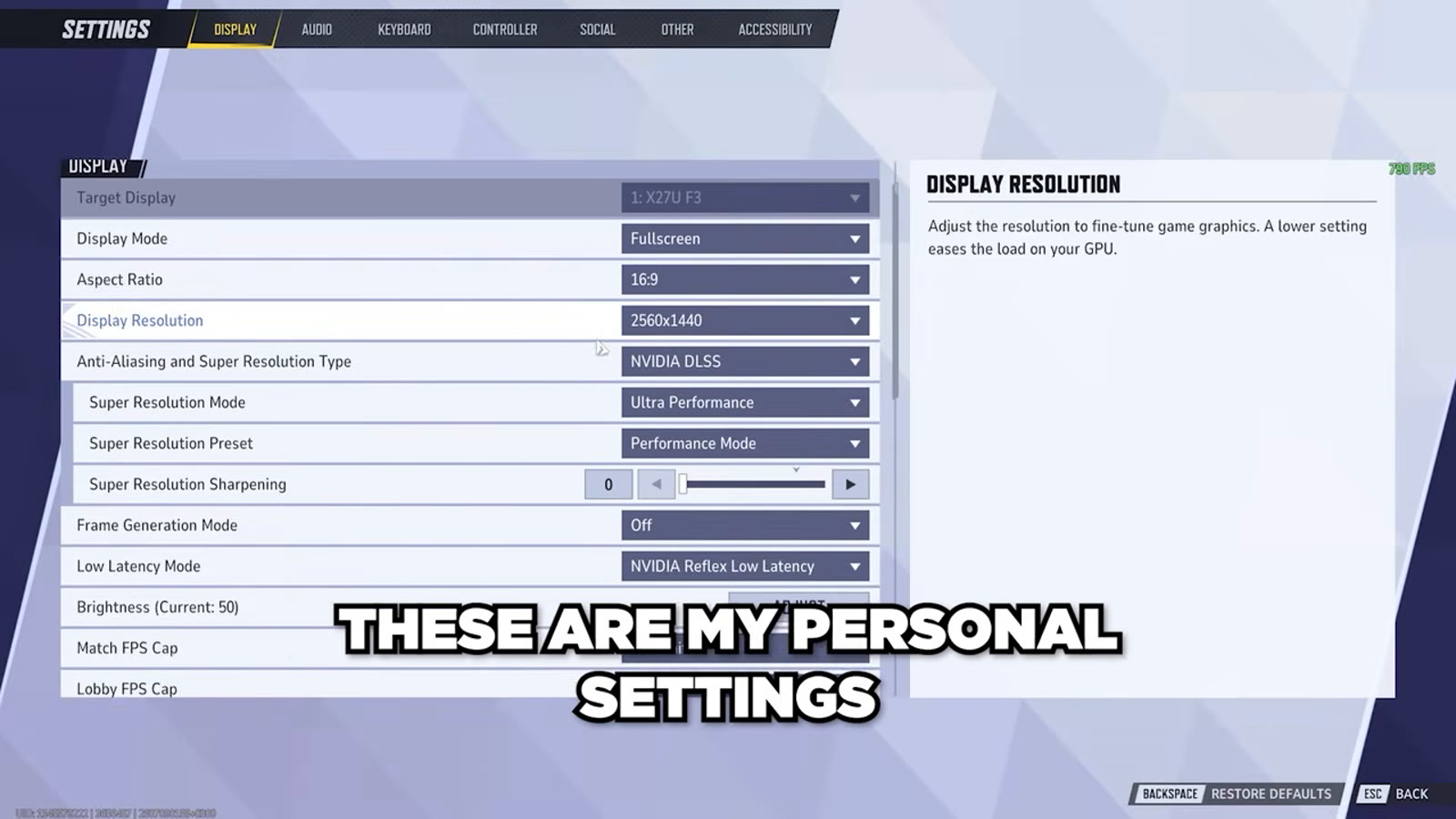
The video runs Fullscreen display mode with the newest upscaling technology set to Ultra Performance and the Performance preset, and recommends AMD users try FSR with render scaling around 50-70% and adjust from there to taste. Frame Generation is only recommended on 40-series or 50-series NVIDIA cards, and only if your baseline average FPS is already at least 60 — below that, frame generation introduces more input lag than it's worth.

For the rest of the graphics menu, the video's personal settings are: Global Illumination off, Reflection Quality off, Model Detail on Performance, Post Processing low, Shadow Detail low, Texture low, Effects low, and Foliage low — all tuned for maximum FPS rather than visual fidelity.
These are one creator's personal preferences for competitive play, not officially recommended defaults — if you have GPU headroom to spare, several of these (Texture and Shadow Detail especially) are worth raising before you drop them, since they cost less performance than the others for the visual clarity they add.
Third-party tools worth knowing
The video's audio narration repeatedly refers to a one-click PC optimization tool as "Hyper-V" — but the app shown on screen is actually named Hypertune, a paid all-in-one optimizer covering Windows tweaks, custom NVIDIA profiles, and safe, beginner-friendly overclocking. This is a case where the on-screen UI is trusted over the spoken audio, since Hyper-V is actually an unrelated Windows virtualization feature with nothing to do with FPS.

If you'd rather not touch every setting manually, both NVIDIA's and AMD's driver software have a one-click "Optimize" button that gives a reasonable baseline, and MSI Afterburner is called out as a solid option for an on-screen performance overlay to track how your changes are actually performing.
What actually matters most

The video's closing advice is to watch your 1% lows rather than your average FPS — a steady frame rate feels dramatically smoother than one that spikes high but dips constantly, even if the average number looks similar. It also flags GPU temperature and thermal throttling as something that will affect real-world performance more than any single setting change, so keeping an eye on temps under load is worth doing alongside any of the tweaks above. In the video's own framing, driver updates plus dropping upscaling quality account for roughly 80% of the total gains available, and take about five minutes.
Marvel Rivals' automatic captions repeatedly transcribe the game's name as "Mobile Legends" throughout this video, and one line references "Valorant" — both are treated as speech-to-text errors rather than the creator actually discussing a different game, since every setting, menu and screen shown on camera is unmistakably Marvel Rivals.
How this guide was fact-checked
This is a hardware and software optimization guide rather than a gameplay topic, so the Marvel Rivals Wiki (marvelrivals.wiki.gg) has no relevant page to check driver or Windows settings against — that's expected, and this guide relies entirely on the settings screens captured directly on camera in the source video instead. Two corrections came directly from comparing the video's spoken audio against its own on-screen footage: the optimization tool named in narration as "Hyper-V" is shown on screen as Hypertune, and several instances of the game being called "Mobile Legends" in the auto-generated captions are treated as transcription errors, not genuine references to a different game, since the visible UI throughout is Marvel Rivals'.
What this guide doesn't answer
This guide doesn't cover console performance settings (PS5/Xbox), since the source video is PC-specific — a separate console-focused settings guide covers that ground. It also doesn't include specific benchmark numbers (like measured before/after FPS), since the source video doesn't provide any — its advice is presented as settings recommendations rather than quantified performance claims.
Frequently asked
What is the single most important setting for FPS in Marvel Rivals?
Keeping your GPU driver up to date, ideally with a clean install rather than an update-in-place if you've recently swapped GPUs. After that, dropping upscaling quality (like using DLSS or FSR on Performance or Ultra Performance) accounts for most of the remaining easy gains.
What Max Frame Rate cap should I set for my monitor?
Set it a few frames below your refresh rate rather than exactly at it: 139 for 144 Hz, 226 for 240 Hz, 328 for 360 Hz, 424 for 480 Hz, or 439 for 500 Hz. This smooths frame pacing. If you want the lowest possible input delay instead, run uncapped with V-Sync off.
Should I use Frame Generation in Marvel Rivals?
Only on a 40-series or 50-series NVIDIA card, and only if your baseline average FPS is already at least 60. Below that threshold, Frame Generation introduces more input lag than it's worth for a competitive shooter.
Is Hyper-V the same as Hypertune for PC optimization?
No - this is a common mix-up from auto-generated captions. Hyper-V is an unrelated Windows virtualization feature. The optimization tool actually being demonstrated on screen is Hypertune, a paid all-in-one Windows and driver optimizer.
Should I chase average FPS or something else?
Watch your 1% lows instead. A steady frame rate feels noticeably smoother than one with a high average but frequent dips - raising your 1% lows does more for how the game actually feels than pushing your average FPS higher.
Read next
Console Settings Guide: Fix Input Lag on PS5 (Marvel Rivals)
A latency-benchmark creator measured real millisecond input delay on PS5 across USB vs Bluetooth, HFR vs Pro Mode, VRR, HDR and controller vibration — with one setting worth an 8-9 ms drop on its own.
Best Controller Settings for Marvel Rivals (Season 9 Aim Assist Update)
A console pro's full Season 9 controller settings pass, straight off the settings menu: sensitivity, the Dual-Zone S-Curve, dead zones, and the new aim assist system, plus a starting-point profile code.
Best Crosshair & Controller Settings Guide (Season 9, All Heroes)
A Top 500 controller player's full Season 9 settings pass: display and FPS caps, audio, controller sensitivity and aim assist, and a from-scratch build of a clean red-X crosshair used across every hero.
Loki Guide: Clones, Kill Timing and the Current Mantis Team-Up (Marvel Rivals)
An advanced Loki breakdown fact-checked against current data: splash healing fundamentals, the doppelganger and devious exchange combo, why the Hela team-up no longer works, and the current Mantis team-up that replaces it.